


How to Scan QR Code from Mac or Windows Laptop Screen Without a Phone
A comprehensive operational guide on scanning QR codes directly off your laptop or desktop computer screen without reaching for a smartphone camera. Covers macOS Sonoma/Ventura, Windows 11/10 Snipping Tool, Linux, Chromebook, and client-side browser paste workflows.
Step-by-Step Visual Tutorial Available
Want interactive visual diagrams and print sizing formulas? Check out our visual guide.
Current dashboard · Updated October 8, 2026
Choose type → Add content → Design & publish
- 1. Choose typeUse the category filters, select an available QR type, then choose Static or Dynamic where supported. Type availability and paid features depend on your plan and administrator settings.
- 2. Add contentFill in the required fields and check the live preview. Dynamic pages use the available default layouts and appearance controls; a custom landing-page builder is not currently available.
- 3. Design & publishUse Frame, Shape, Corners, Logo, Templates and Security. Static codes are download-only. Publish a dynamic code before its PNG/SVG downloads unlock.
Use Next to validate each stage; the step bar cannot skip unfinished stages. Going back preserves your work on this page. Changing type prompts for a reset only after you have modified the content.
After publishing, open My QR codes: search, filter, switch Grid/List, and open Edit. Content Payload and Appearance change the hosted page; QR Matrix & Frames changes the code artwork. Save updates and test the existing printed code. Static downloads do not appear in this library or scan analytics.
The public tools combine content and styling on one workspace. The three-stage navigation above describes the signed-in dashboard, not the scanner or the standalone barcode tool.
To scan a QR code from a Mac or Windows laptop screen without a phone, capture a screenshot of the code using native keyboard shortcuts (Win + Shift + S on Windows or Cmd + Shift + 4 on Mac), open the Online QR Code Scanner in your browser, and press Ctrl + V (or Cmd + V) to paste the image directly from your clipboard. The in-browser WebAssembly engine immediately decodes the URL or text in milliseconds without uploading your screenshot to external cloud servers.
We have all encountered this exact frustrating scenario: You are sitting at your desk working diligently on your MacBook or Windows laptop. You are attending a live webinar on Zoom, reading an electronic PDF invoice, checking an email newsletter, or trying to authenticate a two-factor login portal. Suddenly, a prominent QR code appears right in the middle of your computer monitor. The page instructs you to "Scan to proceed" or "Scan to download resources."
Your immediate instinct is to sigh, dig through your backpack or pocket for your smartphone, unlock your device, launch the camera app, hold the phone up awkwardly against your laptop monitor, battle reflection glare from overhead office lights, and wait for the tiny yellow link box to register. Even worse, if you work in an enterprise environment, financial institution, government office, or healthcare facility with strict clean-desk policies, personal mobile phones might be strictly banned from the office floor entirely.
Why should you have to leave your laptop workstation just to decode a hyperlink that is already displaying on your high-resolution screen? You do not need a smartphone. Modern operating systems and client-side browser utilities make it effortless to capture, decode, and navigate QR codes directly on your computer within three seconds. In this comprehensive technical guide, we will walk you through native desktop shortcuts for Windows 11, Windows 10, macOS Sonoma, macOS Ventura, ChromeOS, and Linux, explain the underlying computer vision mechanisms, and show you how to convert those decoded links into branded, permanent QR codes of your own.
1. The Desktop QR Paradox: Why Scanning Laptop Screens with a Phone Is Broken
Scanning a computer screen with a mobile handset creates an optical barrier known in digital imaging as the Moiré Effect. Computer displays operate on a raster grid of microscopic subpixels arranged in red, green, and blue (RGB) phosphors. When your smartphone camera lens captures this electronic grid at close range, the spatial frequency of the camera sensor's Bayer filter interferes with the spatial frequency of the laptop's display matrix.
This optical interference produces rippling chromatic distortion bands across the viewfinder. Furthermore, pulse-width modulation (PWM) used by laptop screen backlights to dim brightness creates microscopic high-frequency flicker that human eyes cannot perceive, but camera shutter sensors record as dark horizontal rolling bars. These artifacts degrade the crisp black-and-white contrast of the QR code finder patterns, forcing your phone camera to hunt endlessly for focus.
The Security Risk of Shady Browser Extensions
Many users desperately install third-party Chrome or Edge browser extensions titled "Desktop QR Code Reader." Beware: numerous free browser extensions request broad permissions such as "Read and change all your data on the websites you visit". Malicious or acquired extensions frequently inject affiliate trackers, scrape session cookies, or log keystrokes. You never need an invasive browser extension to scan a QR code on your PC when pure client-side WebAssembly tools can decode your clipboard directly in sandbox memory.
2. The 3-Second Universal Method: Direct Clipboard Paste (Ctrl+V / Cmd+V)
Regardless of whether you run Windows 11, Windows 10, macOS, Ubuntu Linux, or a Chromebook, the fastest and most secure method to read an on-screen QR code involves capturing a regional screenshot straight to your system clipboard and pasting it directly into our zero-install web scanner.
Here is the exact step-by-step workflow:
Capture the On-Screen QR Code Region
Trigger your operating system's regional screen snipping tool. On Windows, press Win + Shift + S. On Mac, press Cmd + Ctrl + Shift + 4 (to copy selection directly to clipboard). Draw a box around the QR code.
Open the Online Scanner Tool
In your web browser, navigate to the Online QR Code Scanner. No account registration, webcam permission, or software installation is required.
Paste Directly from Clipboard (Ctrl + V / Cmd + V)
Simply press Ctrl + V on Windows or Cmd + V on Mac anywhere on the page. The scanner automatically detects the image binary in your clipboard stream, processes it with client-side WebAssembly, and displays the decoded content instantly.
Interact with Decoded Data or Create a Branded Version
Click "Open Link" to navigate to the target web address, click "Copy to Clipboard" to copy raw text, or click "Generate Similar QR Code" to pre-fill our design studio and generate a fresh high-resolution vector code.
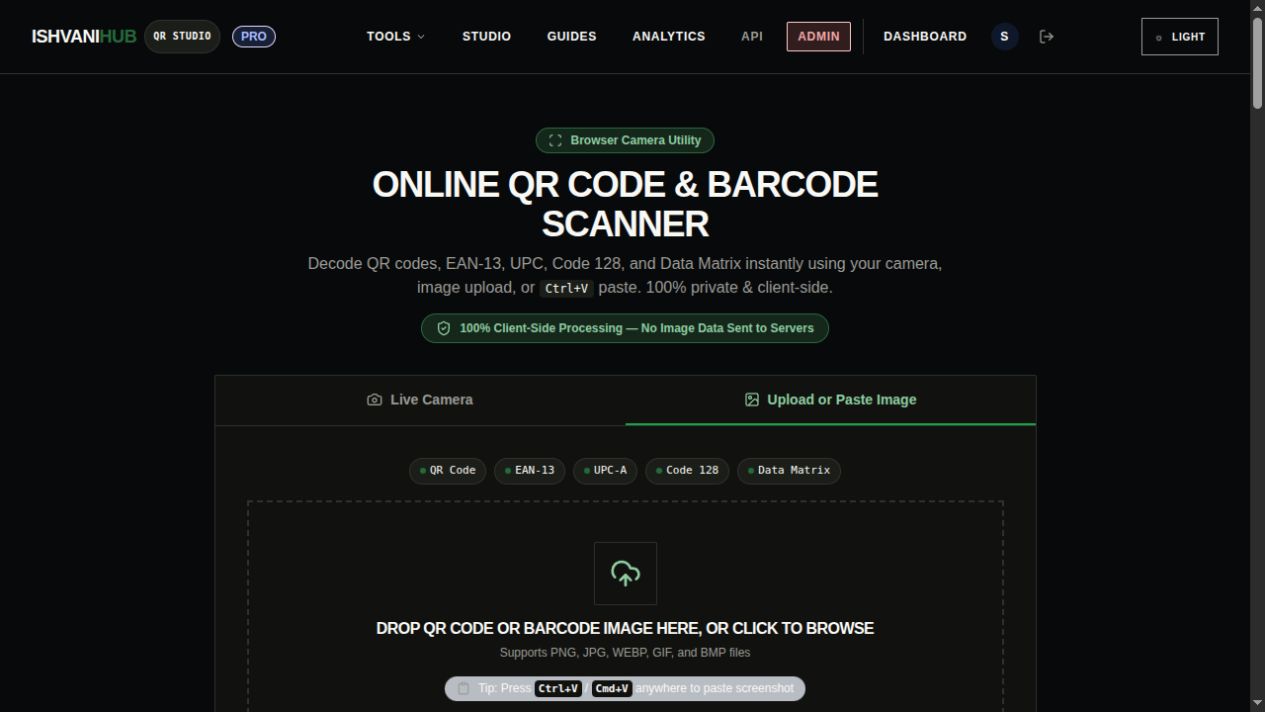
The browser-based QR scanner supports instant drag-and-drop, file upload, webcam live feed, and system clipboard paste.
3. How to Scan QR Codes on Windows 11 and Windows 10 Laptops
Windows PCs offer several native tools and keyboard combinations to isolate and decode barcodes without external devices. Here are the two most dependable approaches:
Method A: The Windows Snipping Tool (Built-in to Windows 11)
Microsoft rebuilt the Windows 11 Snipping Tool (formerly Snip & Sketch) to feature native optical character recognition (OCR) and text actions. While the tool's text extraction can sometimes detect QR links in recent builds, its optical barcode support remains temperamental depending on display scaling. The most reliable pipeline is:
- Press Windows Key + Shift + S to darken your screen and invoke the rectangular selection cursor.
- Click and drag a clean box around the QR code displayed on your screen, ensuring you include a small white border around all four edges (the Quiet Zone).
- Once released, Windows saves the cropped image directly to your clipboard and displays a notification banner in the bottom-right action center.
- Switch to your browser tab running the Ishvanihub QR Scanner and press Ctrl + V. The code is decoded in less than 50 milliseconds.
Method B: Using Microsoft Edge Web Capture
If the QR code is embedded inside a webpage or web-based email inside Microsoft Edge, you do not even need to open a desktop screenshot tool:
- Inside Microsoft Edge, press Ctrl + Shift + S to open the integrated Web Capture toolbar.
- Select "Capture Area" and drag your cursor over the QR code on the webpage.
- Click the "Copy" icon that appears above the selection.
- Open a new tab to
https://qrgenerator.ishvanihub.com/qr-code-scannerand hit Ctrl + V to decode immediately.
4. How to Scan QR Codes on macOS (MacBook, iMac, Mac Mini) Without an iPhone
Apple introduced Live Text in macOS Monterey, Ventura, and Sonoma. While Live Text can sometimes detect QR codes in saved photos inside the Photos app or Preview, it frequently fails when dealing with dynamic web pages, webinar streams, or low-contrast graphics.
The Native macOS Clipboard Shortcut: Cmd + Ctrl + Shift + 4
Many Mac users know that pressing Cmd + Shift + 4 takes a screenshot and saves it as a file on your Desktop. However, saving files clutters your desktop with temporary files you must later delete.
Instead, use Apple's pro shortcut: Command + Control + Shift + 4. Adding the Control key instructs macOS to place the captured image directly onto your system memory clipboard without creating a desktop file!
- Step 1: Press Cmd + Ctrl + Shift + 4. Your mouse pointer transforms into crosshairs showing pixel coordinates.
- Step 2: Drag the crosshairs around the QR code on your Mac screen. Release the mouse button.
- Step 3: Open Safari, Chrome, or Firefox to Ishvanihub Online QR Scanner.
- Step 4: Press Cmd + V. The decoded web address, Wi-Fi credentials, or vCard information appears immediately in the interactive result card.
5. Operating System Comparison: Laptop Screen QR Scanning Capabilities
Here is a comparative breakdown of how each major desktop operating system handles on-screen barcode and QR decoding:
| Operating System | Built-in Shortcut | Native Barcode Recognition | Recommended Fast Workflow | Privacy Level |
|---|---|---|---|---|
| Windows 11 | Win + Shift + S | Partial (OCR text only) | Snip to clipboard → Paste into Web Scanner | 100% In-Browser Local |
| Windows 10 | Win + Shift + S | None | Snip to clipboard → Paste into Web Scanner | 100% In-Browser Local |
| macOS Sonoma / Ventura | Cmd + Ctrl + Shift + 4 | Photos/Preview Only | Clipboard shortcut → Paste into Web Scanner | 100% In-Browser Local |
| ChromeOS (Chromebook) | Ctrl + Shift + Switch Window | None | Screenshot selection → Drag into Web Scanner | 100% In-Browser Local |
| Linux (Ubuntu / Fedora) | Shift + PrintScreen | None | Regional snip → Paste into Web Scanner | 100% In-Browser Local |
6. How to Scan Screen QR Codes on Chromebooks and Linux Desktops
Chromebooks (ChromeOS)
Students, teachers, and enterprise fleet users frequently operate on Chromebooks where smartphone access during exams or meetings is prohibited. To scan an on-screen QR code on ChromeOS:
- Press Ctrl + Shift + Overview Key (the key with a rectangle and two lines, typically located above the number 6).
- In the screen capture toolbar that pops up at the bottom of the screen, select "Partial Screenshot" (the square dotted icon).
- Drag your cursor to outline the QR code and click "Capture".
- A notification will appear in the bottom right stating "Screenshot copied to clipboard".
- Switch to your browser tab with the Ishvanihub Scanner and hit Ctrl + V.
Linux Workstations (Ubuntu, Debian, Fedora, Arch)
Developers and system administrators using Linux environments (such as GNOME or KDE Plasma) can utilize native capture shortcuts:
- On GNOME 42+ (Ubuntu 22.04 / 24.04): Press the Print Screen key. A modern interactive overlay appears. Select the selection box tool, choose Selection, drag around the QR code, and hit Copy (or press Enter).
- On older desktop environments, press Shift + Ctrl + Print Screen to copy a rectangular region directly to the X11 or Wayland clipboard.
- Open your browser, navigate to the web scanner, and press Ctrl + V. The browser reads the clipboard image binary and extracts the payload instantly.
7. How to Scan QR Codes from Zoom Webinars, Microsoft Teams, and PDF Documents
One of the highest-friction moments in professional remote work happens when a presenter during a Zoom, Google Meet, or Microsoft Teams conference shares a PowerPoint presentation displaying a QR code. The speaker says: "Scan this code to download the slide deck, complete our feedback survey, or connect on LinkedIn."
Because Zoom or Teams is running in full-screen or split-screen mode on your primary laptop display, grabbing your smartphone is annoying and distracting. Here is how to handle live presentations like a professional:
Zoom & Teams Live Presentations
Do not exit full-screen mode. Simply trigger your operating system's keyboard screenshot shortcut (Win+Shift+S or Cmd+Ctrl+Shift+4). The OS freezes the screen frame, allowing you to crop the presenter's QR code. Paste it into your browser tab to open the resource before the speaker advances to the next slide!
PDF Documents & Invoices
When viewing electronic bank statements, bills of lading, or flight boarding passes in Adobe Acrobat, Apple Preview, or Google Chrome, zoom into the document to 150% or 200%. Snip the code area with your cursor and paste. The increased pixel density makes decoding 100% instantaneous, even on dense Version 10+ matrices.
8. The Technical Architecture: How In-Browser WebAssembly Decoding Protects Your Privacy
When scanning confidential corporate documents, private Wi-Fi network credentials, two-factor authentication seed keys, or internal enterprise links, you must be extremely conscious of data privacy. Many legacy "free online barcode reader" websites operate by uploading your captured image file to their remote cloud servers, running an image processing script (like Python PIL or zbar on their backend), and sending the decoded string back to your browser.
This cloud-upload model is an enterprise security nightmare. If an employee captures an internal network credential or confidential medical chart QR code and uploads it to an unverified third-party server, that image file may be logged, stored in temporary server disks, or exposed to data breaches.
On QR Generator Ishvanihub, our scanning architecture is built entirely on client-side WebAssembly (WASM) and HTML5 Canvas API:
The Zero-Upload Client-Side Processing Pipeline
- 1. Local Memory Ingestion: When you press Ctrl+V or drop an image, the browser reads the raw binary data into an isolated JavaScript
Blobstored strictly in your local device RAM. - 2. Canvas Pre-Processing: The image is rendered to an invisible, offscreen HTML5
<canvas>element where automated grayscale conversion, contrast stretching, and luminance thresholding are computed locally on your CPU/GPU. - 3. WebAssembly Computer Vision: Compiled C++ computer vision decoders (ZXing / jsQR) parse the coordinate grid, locate the three Finder Patterns, correct perspective skew, and apply Reed-Solomon error correction directly inside your browser sandbox.
- 4. Zero Network Transmission: At no point is the image, its pixel data, or the decoded text payload transmitted across the internet to our servers. Decoding works even if you disconnect your laptop from Wi-Fi immediately after loading the page!
9. Troubleshooting: 5 Common Fixes When a Screen QR Code Fails to Scan
If you crop an on-screen QR code and the reader fails to recognize it, the culprit is almost always one of these five easily correctable digital display issues:
1. The Screenshot Was Cropped Too Tightly (Missing Quiet Zone)
Under international standard ISO/IEC 18004, every QR code requires a mandatory buffer of blank space around all four sides called the Quiet Zone (equal to at least 4 module widths). If you snip right up against the outer black corner squares, the edge-detection algorithm cannot isolate the code from adjacent page text or dark backgrounds. Fix: Retake the screenshot leaving a generous white/light margin around all four sides.
2. Display Resolution Is Too Low (Subpixel Blurring)
If a QR code on a webpage is rendered at a tiny physical size (e.g., 60x60 pixels), taking a 1:1 screenshot produces jagged, anti-aliased grey pixels that blur the data modules together. Fix: Zoom into your browser window (Ctrl + Plus or Cmd + Plus) to enlarge the code to 200% or 300% before snipping.
3. Dark Mode Inversion (Light Code on Dark Background)
Many developers invert QR codes in modern dark mode themes so they appear with white modules on a black background. Optical decoding algorithms are fundamentally calibrated to identify dark modules on high-reflectance light surfaces. While our scanner features automated inversion detection passes, extremely subtle grays can still fail. Fix: Temporarily toggle off dark mode on the source application or capture a larger surrounding area.
4. Distorted Aspect Ratio or Perspective Skew
If a presenter accidentally stretched a QR code horizontally or vertically in PowerPoint, the finder pattern module ratios (1:1:3:1:1) become distorted, causing standard decoders to fail. Ensure the captured image retains its original square geometry.
5. Logo Overload Covering More Than Error Correction Allows
If the creator slapped a massive company logo across the center of the code without using Level H (30%) Reed-Solomon error correction, key data words might be permanently destroyed. In this case, no scanner on earth can mathematically reconstruct the missing bits.
10. The Conversion Funnel: How to Turn Any Decoded Link into a Branded, Permanent QR Code
Now that you have successfully decoded the QR code from your laptop screen, what do you do with that information? In many instances, professionals scan codes from webinars, competitor collateral, or event materials because they want to share that same link with their own team, embed it into an upcoming presentation slide deck, or create an unexpirable version for marketing collateral.
This is where QR Generator Ishvanihub completely changes the game. When your scan succeeds, our interactive result card provides dedicated conversion action buttons designed specifically for creators:
One-Click Pre-Filled Studio Cloning
Clicking "Generate Similar QR Code" instantly transfers the decoded URL, contact details, or Wi-Fi credentials into our Free QR Studio. You do not need to retype or copy-paste long URLs with complex UTM tracking parameters. The generator automatically pre-fills the payload form, allowing you to re-export a razor-sharp vector SVG immediately.
Professional Branding & Error Correction
Want to make sure your audience never struggles to scan your presentations? Click "Create a Permanent Branded QR Code for Free" to access our Custom QR Code Generator with Logo. You can apply custom brand color palettes, round dot modules, elegant corner eye frames, insert your company logo, and select Level H error correction to guarantee scans even from distant conference rows.
Frequently Asked Questions (People Also Ask)
Can I scan a QR code from my laptop screen without any internet connection?
Yes, as long as the scanner web application is already loaded in your browser cache. Because QR Generator Ishvanihub executes its image decoding completely locally inside your browser via WebAssembly (WASM), no network request is sent to any remote server during the decoding phase. You can capture a screenshot, turn off Wi-Fi, paste the image into the scanner, and it will decode the raw binary string completely offline.
Why didn't my Mac's built-in Live Text feature recognize the QR code on my screen?
Apple's macOS Live Text is heavily optimized for optical text recognition (Latin letters, numbers, and punctuation) and only triggers barcode analysis in specific applications like Apple Photos or Quick Look Preview. Furthermore, Live Text often ignores low-contrast codes, codes displayed on high-DPI retina displays with subtle anti-aliasing, or codes embedded inside web video streams. Using a dedicated client-side browser scanner bypasses these operating system heuristics and guarantees a full computer vision decoding pass.
Can I scan a two-factor authentication (2FA) QR code from my laptop screen?
Yes. When setting up 2FA for Google Authenticator, Authy, or 1Password on a desktop browser, websites display an authenticator QR code. When you crop and paste this code into our scanner, it decodes the raw otpauth://totp/... URI containing your secret seed key. You can copy this alphanumeric secret key and paste it directly into your desktop password manager (such as 1Password, Bitwarden, or KeePassXC) without needing a phone.
Is it safe to paste confidential business screenshots into this online scanner?
Yes, 100% safe. Unlike typical online converter sites that upload your graphics to an unknown cloud backend, our scanner runs completely within your browser's local sandbox memory. No image bytes, file names, or decoded payloads are ever transmitted, stored, or logged on our servers. Your corporate data never leaves your computer.
How do I scan a QR code if I have multiple monitors connected to my laptop?
Multi-monitor setups make this workflow even faster. When using Win + Shift + S on Windows or Cmd + Ctrl + Shift + 4 on Mac, your cursor can freely cross display boundaries. Simply snip the code from your secondary monitor, move your cursor back to your main screen, and press Ctrl + V in your open browser tab. You do not need to drag windows between monitors.
Can this tool scan traditional 1D retail barcodes from laptop screenshots as well?
Yes! In addition to 2D QR codes, our in-browser computer vision engine natively decodes linear 1D barcodes including EAN-13, UPC-A, Code 128, Code 39, and Data Matrix directly from cropped screenshots or pasted PDF pages.
How do I create my own QR code that scans reliably on both laptops and phones?
To guarantee effortless scanning across both computer screens and mobile lenses, generate your codes with high contrast (dark modules on a clean light background), maintain a generous 4-module quiet zone, export in lossless vector SVG format, and use Level H error correction if placing a logo. You can create permanent, unexpirable codes for free using our Custom QR Code Generator with Logo.
Ready to Scan or Create QR Codes on Your Laptop?
Stop hunting for your phone. Use our instant, privacy-focused WebAssembly scanner to read any code in 3 seconds, or build your own permanent branded QR codes for presentations and marketing completely free.
Ready to Create Your Custom QR Code?
Start generating scannable QR codes with custom colors, company logo, and lossless vector SVG export in seconds.