
How to Scan a QR Code from an Image, Screenshot, or Photo (No App Needed)
Learn how to scan QR codes from pictures, screenshots, and gallery photos on any computer or mobile device without installing third-party apps.
Step-by-Step Visual Tutorial Available
Want interactive visual diagrams and print sizing formulas? Check out our visual guide.
Quick Answer: How to Scan a QR Code from an Image Online
- Open the Online Scanner: Navigate to the free Online QR Code Reader from Image.
- Upload Your File: Drag and drop your image, screenshot, or photo (PNG, JPG, WebP, or SVG), or paste directly from your clipboard (Ctrl+V / Cmd+V).
- Instant In-Browser Decoding: The browser extracts the embedded URL or text in under 10 milliseconds using client-side WebAssembly without uploading your photo to any cloud server.
- Open or Copy Payload: Click "Open Link" to visit the destination URL or "Copy Text" to save the contents to your clipboard.
You have probably encountered this frustrating dilemma: a friend sends you an event flyer or concert ticket on WhatsApp, an e-commerce receipt arrives in your email with a payment code, or you spot an interesting promotion on Instagram. The QR code is displayed directly on your screen—yet smartphone cameras are designed to scan objects in front of the lens, not pictures saved in your own photo gallery.
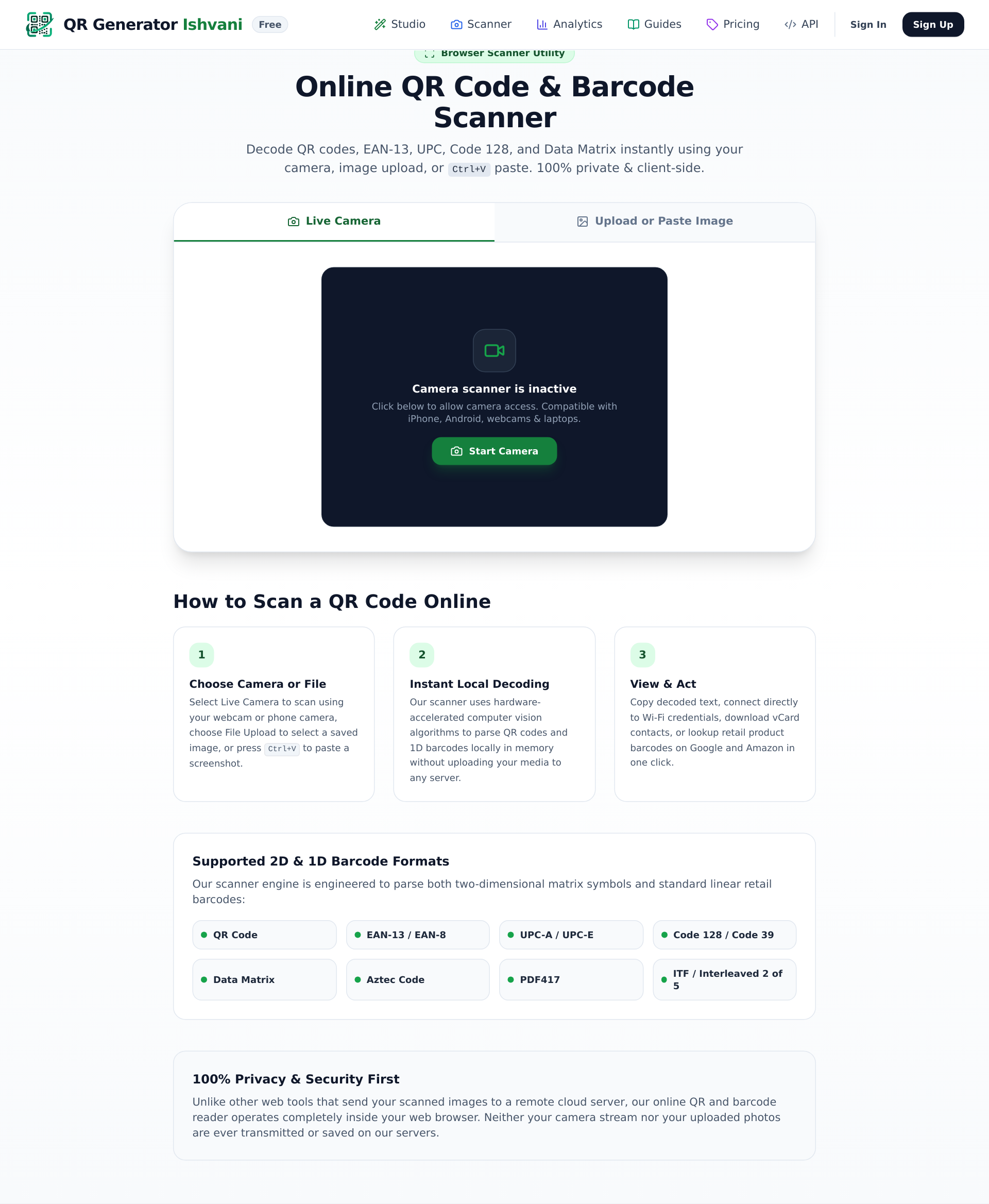
Actual QR Generator Ishvani Online Scanner at /qr-code-scanner. Offers Live Camera and Upload or Paste Image modes with 100% private, client-side decoding for QR Code, Data Matrix, Aztec, EAN-13, and Code 128 barcodes.
In the past, people resorted to absurd workarounds: taking a screenshot, emailing it to a computer screen, and then holding their phone up to scan the laptop display. Others downloaded suspicious, ad-infested scanner apps from app stores that harvest location telemetry and contact permissions.
Neither is necessary. You can decode any QR code directly from a picture, screenshot, or document file in seconds using modern browser-based optical engines or native operating system features.
Method 1: Scan from Any Device Using an Online Web Scanner (Universal)
The most versatile approach works identically on Windows PCs, MacBooks, Chromebooks, iPhones, iPads, and Android phones without requiring software installation.
Access the Web Decoder
Open your browser and launch the Online QR Code Scanner. Bookmark this utility for rapid access whenever you encounter digital barcodes.
Supply the Image File
Choose whichever ingestion method is fastest for your current workflow:
- Drag-and-Drop: Drag an image file from your desktop or folder directly onto the upload zone.
- Clipboard Paste: If you just captured a screen snip (Win+Shift+S on Windows or Cmd+Shift+4 on Mac), simply press Ctrl+V anywhere on the page.
- File Browser: Click "Choose Image File" to select photos from your device library or camera roll.
Inspect & Execute the Result
The optical recognition algorithm automatically isolates the matrix grid, corrects perspective skew, and decodes the payload. If the result is a website link, click Open Link to navigate safely. If it is a vCard digital business card or WiFi credentials, you can copy the plain text with a single tap.
Security & Privacy: Why In-Browser WebAssembly Decoding Matters
Many generic online QR decoders require you to upload your image file to a remote cloud server where their backend processes it. This is a severe privacy vulnerability if your image contains:
- Private boarding passes or airline tickets with passenger name records (PNR).
- Two-factor authentication (2FA) authenticator QR codes with secret seeds.
- Confidential corporate documents, internal intranet links, or WhatsApp web login codes.
- WiFi network security credentials with plaintext pre-shared keys.
| Feature / Metric | QR Generator Online Scanner | Traditional Cloud Decoders | Mobile App Store Scanners |
|---|---|---|---|
| File Transmission | 🔒 Zero Upload (Processed in RAM) | Uploaded to remote web server | Often transmits metadata to ad servers |
| App Installation | None (Runs in web browser) | None (Web browser) | Requires app download & disk space |
| Permissions Required | None (Optional camera access) | None | Requests Location, Contacts, Camera |
| Decoding Latency | Instantaneous (~8ms) | 1,000ms – 3,000ms (Network roundtrip) | 50ms – 100ms |
| Intrusive Ads / Paywalls | 100% Free & Clean | Banner ads and popups | Full-screen video interstitial ads |
Our scanner tool operates using an in-browser HTML5 Canvas and compiled JavaScript decoder. The bytes of your photograph never leave your computer or smartphone.
Method 2: How to Scan from Photos on iPhone & iPad (iOS)
If you are using an iPhone running iOS 15 or later, Apple integrates native optical character recognition through Live Text:
Using the iOS Photos App
- Open the Photos app on your iPhone or iPad.
- Select the screenshot or image containing the QR code.
- Tap the small Live Text badge in the lower-right corner (it looks like three lines inside a square bracket).
- Alternatively, simply press and hold directly on the QR code pattern.
- An action sheet will pop up displaying the destination URL with options to Open in Safari, Copy Link, or Share.
*Tip: If Live Text fails to detect a low-contrast code or an unconventional module pattern, open the image in Safari and use our Online Scanner for higher-sensitivity optical recognition.
Method 3: How to Scan from Gallery on Android Devices
Modern Android devices running Samsung One UI, Google Pixel, or Xiaomi MIUI have Google Lens built directly into their photo viewer:
Option A: Google Photos (Any Android)
- Open the image in Google Photos.
- Tap the Lens icon located along the bottom toolbar.
- Google Lens will highlight the QR code matrix and present a clickable link bubble immediately.
Option B: Circle to Search (Samsung & Pixel)
- While the image or website containing the QR code is on your screen, long-press the Home button or navigation handle.
- Circle or tap the QR code on your display.
- Tap the URL chip that appears to launch your browser.
Troubleshooting: Why Won't My QR Code Screenshot Scan?
If you upload a photo or take a screenshot and the decoder cannot read it, one of these five common structural issues is usually responsible:
1. Missing or Cropped Corner "Finder Eyes"
A QR code cannot be decoded without its three large concentric corner squares (Position Detection Patterns). If your screenshot accidentally cropped off even one corner, the software cannot calculate matrix scale or orientation. Re-take the screenshot with generous white border padding.
2. Extreme Compression or Blurriness
If an image has been re-shared multiple times through messaging apps like WhatsApp or Messenger, aggressive lossy JPEG compression blurs the boundary between black and white pixels. Try to obtain the original source file or ask the sender to export a high-resolution PNG or vector SVG from a reliable custom QR generator.
3. Inverted Color Palette
The ISO/IEC 18004 specification dictates dark data modules on a light background. When designers invert codes (white pixels on a dark charcoal or navy background) for "dark mode" aesthetic reasons, many default smartphone camera decoders fail. Our web scanner includes automated inverse threshold filters to decode inverted matrices.
4. Inadequate Contrast (Washed-Out Colors)
Pastel yellow or light blue modules on a white background do not provide enough luminance difference for optical threshold algorithms. A minimum contrast ratio of 4.5:1 is required.
5. Moiré Screen Glare on Photos of Monitors
If you used a phone camera to take a physical photograph of a computer monitor, interference lines (the Moiré effect) will distort the grid. Instead of taking a photo of your screen, use a native screen snip tool (Win+Shift+S or Cmd+Shift+4) and upload the crisp digital file.
Frequently Asked Questions About Scanning QR Codes from Images
Can I scan a QR code from an image on my PC or Mac without a webcam?
Yes. You do not need a webcam or camera attached to your computer. Open our Online QR Code Scanner in Chrome, Firefox, Safari, or Edge, and drag your screenshot file onto the screen. It decodes in milliseconds entirely from the image pixels.
Is it safe to scan sensitive QR codes using an online tool?
It depends on the tool. Most online decoders upload your file to their server backend, which poses a privacy risk. However, the QR Generator scanner utilizes client-side WebAssembly execution: all image processing happens strictly inside your computer's RAM. No files, logs, or payload strings are ever transmitted over the network.
Can I scan a QR code from a PDF document?
Yes. Take a quick screenshot of the QR code page in your PDF reader (Win+Shift+S on Windows or Cmd+Shift+4 on Mac), then paste or drag that snippet directly into our scanner.
What image formats are supported?
Our scanner supports all modern raster and vector web formats including PNG, JPEG, WebP, GIF, BMP, and SVG.
Need to Scan a QR Code Right Now?
Upload any screenshot, photo, or picture file to decode the embedded link or text instantly with zero ads and 100% client-side privacy.
Ready to Create Your Custom QR Code?
Start generating scannable QR codes with custom colors, company logo, and lossless vector SVG export in seconds.